








Website monitoring is a must if you want to keep the website on par with its competitors and even make it better than them in your niche. Because in the modern digitalized world everything related to websites literally revolves around their availability and performance before anything else. Without keeping those two-complex metrics in check, no effort in terms of promotion or development will be useful.
Therefore, if you want to make the website considered respectable and reliable by its users, you must monitor its status, look for possible issues and fix or prevent them if you find anything. Only that way you will be able to achieve success for the website you own or manage as its webmaster.
What Is a Good Response Time for a Website?

As one of the basics in measuring website performance, its response time is the main metric to be worried about for the website owner. Therefore, it is important to understand what it is and what result it is vital to aim for if you want to keep the website in the best shape.
Basically, response time is the time between the moment when the server received a request from the user and the time it sent the response back. Nowadays, taking modern Internet quality and speed into account, this time should be no more than 200 milliseconds. This number is the maximum allowed to consider response time as good. Normally, it is somewhere between 100 and 200 milliseconds. And if the website has a response time of less than 100, it can be considered very fast-working.
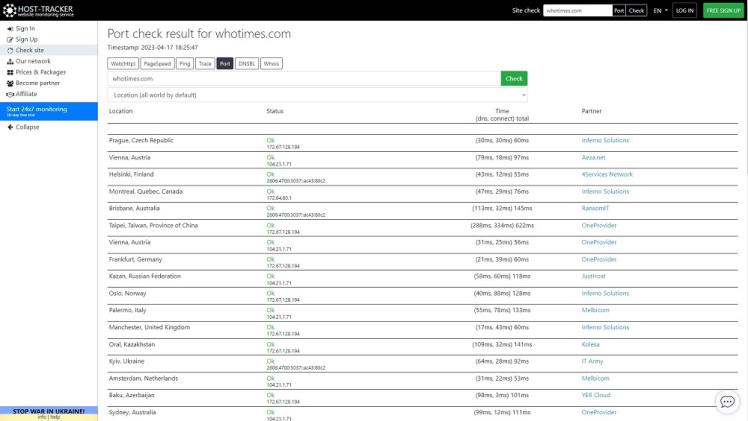
The basic method to measure response time is to simply issue a ping command using a specific tool, whether it’s an in-built in an OS or an external one. Simply put, you can ping your website and check its response time with Host-Tracker’s ping tool, for example. And you will quickly have the result and will be able to understand how fast the website is responding.
How to Ping a Website in Command Prompt?
Issuing a basic ping command via Command Prompt (Windows) or Terminal utility (MacOS and Linux) is really easy. Because this tool was primarily designed to be accessible even to those users who are completely inexperienced. To run this command, you should open the Command Prompt or Terminal window and simply type “ping”, then type a website IP or domain name and press Enter.
These simple actions will make your device send the request packet to the server that is hosting the website and wait for a response. And after that, it will show you the outcome with the response time in it. In its basic form without additional commands, ping will make four attempts to send a request to check whether there is something wrong with the connection or the server.
Website Sent an Invalid Response: Reasons
Sometimes it happens that the website is sending a response that is considered invalid. As a user, you will not see it using the ping command, but your browser will show you a specific placeholder web page that will contain the error message. And if it happens, you will know the reason for it just by looking at the message.
But it is important to understand that if you are a novice, then you will probably not know what the error message means. Moreover, there are a lot of variants of error messages for invalid responses, depending on the reason for it. For example, there are some common messages and reasons for their appearance:
- A group of error messages that contain info about date or time invalidation. There is a variety of them, and they literally mean what they say. This happens when the client (user’s device) sends a packet with a date or time that highly differs from the current real date or time.
- A group of messages with information about security certificates that contain words like CERT or certificate. Those are basically messages about problems with the SSL certificate. Usually, they show up when there are problems with outdated client-side security certificate recognition software – OS, browser or antivirus. Changing, updating or temporarily turning off should help. But it is important to mention that rarely, but still not uncommonly, such messages show up when there’s an outdated website SSL and it needs to be updated.
- Messages that contain information about redirects with “too many” comments or “loop” comments. Those messages say that there’s a problem with the redirection sequence on the website side. As a lot of people could guess just from looking, redirect loop or redirect overload can be fixed only on the server side.
Which Factors Impact Your Site Speed?
Website performance and loading speed depend on many factors. And each of them can dramatically decrease the website’s speed if left without properly setting up constant monitoring. Because if left without proper maintenance and attention, these factors can influence the website loading speed and performance:
- Server hardware stability and performance.
- Hosting network route length, performance and quality.
- Web page file sizes and compression methods.
- Database stability and performance.
- Web page code optimization.
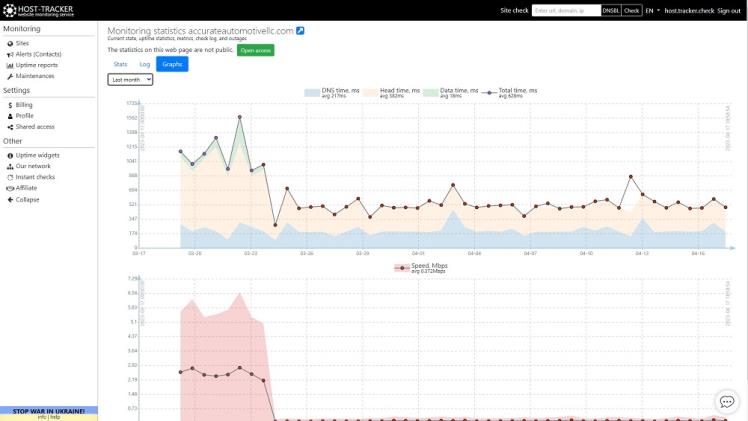
To look into each of these aforementioned speed-influencing factors, you should use advanced tools, even if they are single-use only and not suited for constant monitoring. For example, you can easily check your site’s speed and performance with HostTracker’s site speed test tool and determine where to look at to improve your website’s speed and performance.
How to Speed Up a Site?
If you need to improve your website’s loading speed, and you don’t know where to start, especially when the situation is overall bad, then you need to start from the basics. To do so, you should simply follow these basic website speed and performance optimization tips that were practiced by professional webmasters through years of work:
- Reduce file sizes. It may sound simple, but this tip is one of the most influential ones. Because no matter how you think of it, users will become annoyed by slowly loading images, animations or videos. But at the same time, users will surely complain if everything will have poor quality. Therefore, it is vital to keep a balance between size and quality.
- Properly set up a caching routine. Caching is a very useful option when a lot of your website’s pages have a lot of heavy-weight content. And if you set up caching properly, then files that load with every page will load directly from the user’s client storage.
- Clean up the website’s code. Simply put, you must optimize the code of your web pages. Because if CSS and JS loading orders are wrong, there is a lot of garbage code and there is no configured loading queue, the website’s pages will load very slowly despite the fact that you’ve already optimized its content and file sizes.
- Use proper compression methods. Following the previous tip, it is vital to properly use file compression methods. And actually, proper file compression will help with some of the loading issues like oversized files or unoptimized scripts.
- Switch to another hosting service. As simple as it sounds, if the current hosting service is lacking in performance, then it is usually better to move to another one, carefully considering your options. Almost always you can find better offers and better performance than you had.
FAQ
- How can I monitor changes on my website for free? Website monitoring on a constant basis is impossible – there are no services with high quality and quantity of tools at their disposal. But you can always conduct a couple of one-time tests using free tools. Like, for example, you can ensure website uptime with website uptime monitor Host-Tracker’s monitor platform offers. And it has a lot of other useful and free one-time monitoring tools.
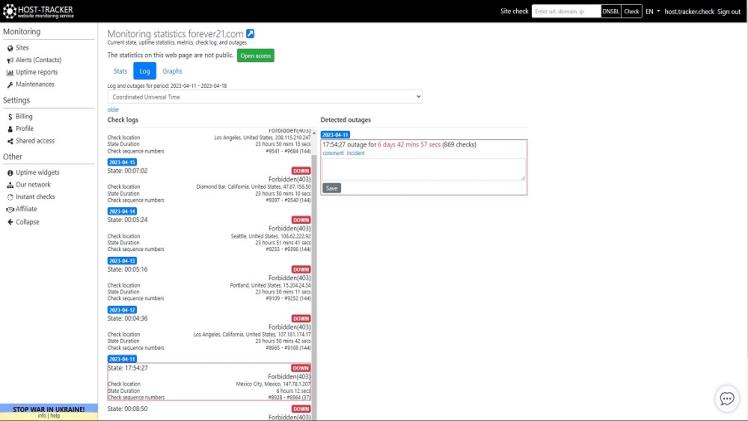
- Is there a way to get notified when a website is updated? When there’s something happening with the website, then you surely want to know what and where is happening. Otherwise, you won’t be able to effectively react to it. Therefore, if you want to set up a constant monitoring routine, you need to use advanced tools like HostTracker – it will instantly notify you about bad changes in the website’s status.
Wrap Up
If you want to keep your website safe and sound, working properly and always accessible, you need to provide it with proper monitoring. Like using the HostTracker automated monitoring service. It will help a lot with dealing with various issues. Including, but not limited to long response times, slowly loading web pages and a lot of other things.


