

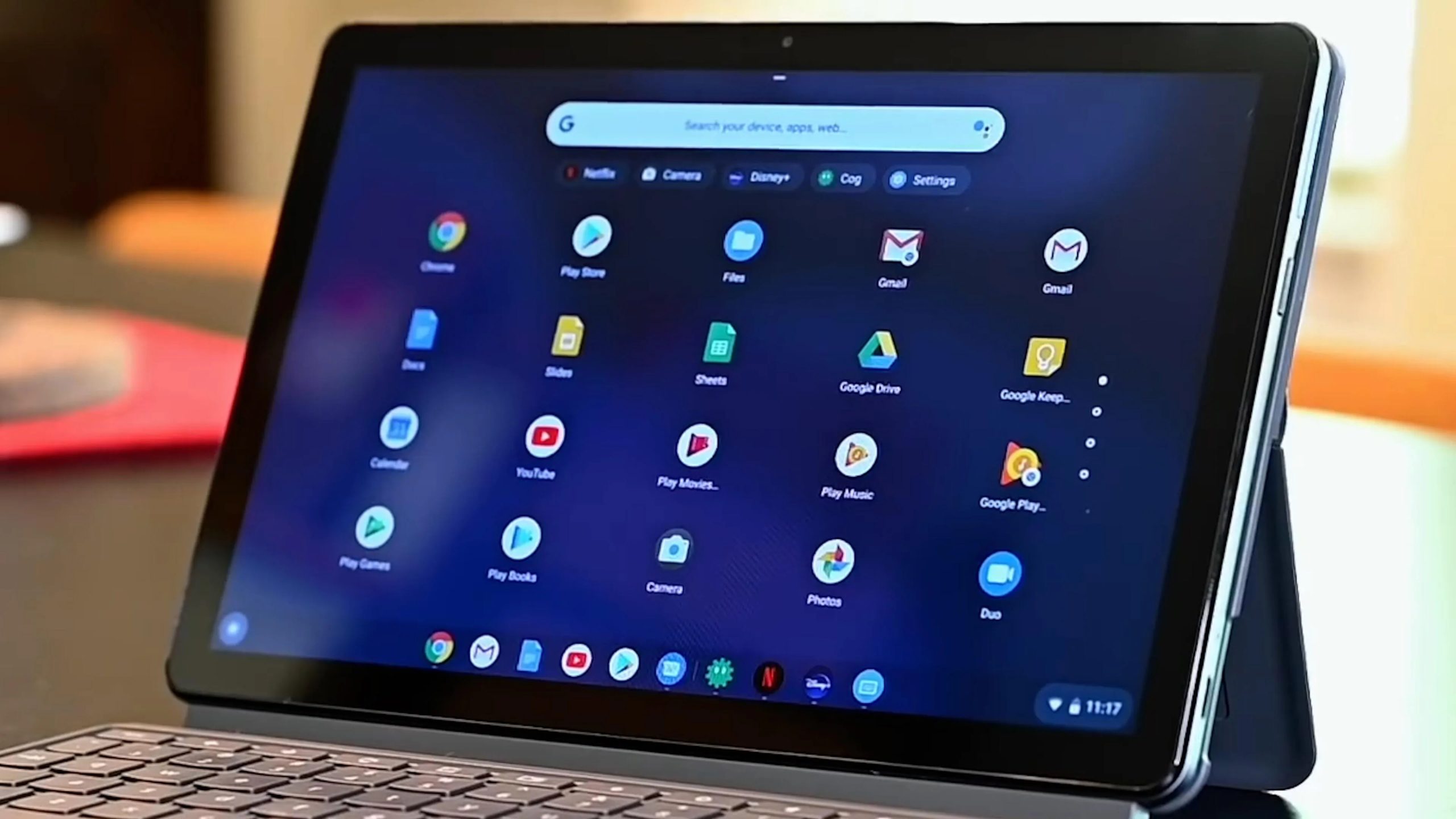

In a world where technology is constantly evolving, the Chromebook has emerged as a sleek and efficient companion for both work and play. Whether you’re a student, a professional, or an avid technology enthusiast, unlocking the full potential of your Chromebook can enhance your productivity and streamline your digital experience. From hidden keyboard shortcuts to clever customization options, this guide presents a collection of essential tips and tricks that will take your Chromebook usage to new heights.
The Chromebook is not just a device; it’s an experience waiting to be fully embraced. So join us as we dive into the realm of possibilities, unveiling the secrets and hidden gems that will transform your Chromebook into a versatile powerhouse. Get ready to revolutionize your workflow, boost your productivity, and revel in the joy of a device designed to simplify and enhance your digital life. Your Chromebook journey starts here with these indispensable tips and tricks that will unlock its full potential.
1. Master Keyboard Shortcuts
Chromebooks have a range of handy keyboard shortcuts to enhance your productivity. Some essential ones include:
- Ctrl + Shift + Q: Locks your Chromebook screen.
- Alt + Tab: Switches between open windows.
- Ctrl + Shift + Q (twice): Signs out of your Chromebook.
2. Use of Auto Clickers
For those seeking to automate repetitive tasks, the use of auto clickers on your Chromebook can be a game-changer. Auto clickers are software programs that simulate mouse clicks, allowing you to automate tasks that require repetitive clicking. Whether you’re engaging in gaming, data entry, or any activity that demands frequent clicks, auto clickers for Chromebook can save you time and effort, leaving you free to focus on more important aspects of your work or leisure.
3. Virtual Desktops
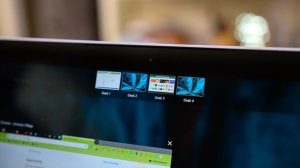
Chrome OS allows you to create multiple virtual desktops for better organization and multitasking. Press the Overview key (usually depicted as a square or rectangle) and click “New Desk” in the top right corner to create a new desktop. You can switch between desktops using the Overview key and the left/right arrow keys.
4. Pin Apps to the Shelf
The Shelf is the taskbar at the bottom of your Chromebook’s screen. Right-click on an app icon in the Shelf and select “Pin” to keep it there permanently, allowing quick access to your favorite apps.
5. Gesture Navigation
Chromebooks support gesture-based navigation for easier browsing. Swipe up with three fingers to view all open windows, swipe left or right with three fingers to switch between tabs, and swipe down with three fingers to exit an app.
6. Offline Mode
Chromebooks are primarily designed to work with an internet connection, but you can also use several apps and features offline. To access offline apps and documents, go to Settings > Offline and enable the option to work offline.
7. Use Google Assistant
Activate Google Assistant on your Chromebook by pressing the Assistant key (usually located between the Ctrl and Alt keys) or by saying, “Hey, Google.” You can ask it questions, control smart devices, set reminders, and more.
8. Take Screenshots
Capture screenshots effortlessly by pressing the Ctrl + Show Windows (usually depicted as a rectangle with two lines on the right side) keys simultaneously. The screenshot will be saved in the “Downloads” folder.
9. Customize Wallpaper and Themes
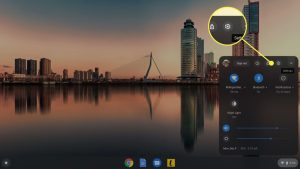
Personalize your Chromebook by changing the wallpaper and applying different themes. Right-click on the desktop and select “Set Wallpaper” to choose an image from your files or select one from the Chromebook’s collection. You can also customize the theme by going to Settings > Personalization.
10. Smart Unlock
If you have an Android phone, you can use the Smart Unlock feature to automatically unlock your Chromebook when the phone is nearby. Go to Settings > Connected devices > Set up > Smart Lock and follow the instructions to enable this feature.
11. Accessibility Features
Chrome OS offers various accessibility features to cater to different needs. Explore options such as screen magnifier, high contrast mode, spoken feedback, and more by going to Settings > Accessibility.
Conclusion
These tips and tricks should help you maximize your productivity and enjoyment while using your Chromebook. Feel free to explore further and discover additional features and customization options that suit your preferences.
