






Photographs often suffer from blur, which can make them unappealing or even unusable. This is especially true when pictures are taken in low-light conditions, with an unsteady hand, or at a slow shutter speed. Even seasoned photographers can find it challenging to sharpen blurry image details, and the process can be time-consuming and complex, requiring specialized image editing software.
However, there is an alternative to traditional image editing software that is both reliable and accessible: VanceAI Image Sharpener. Unlike other software, VanceAI Image Sharpener boasts a user-friendly interface that can be easily navigated by anyone, even those with no prior experience in image editing.
This guide will delve into the benefits of using VanceAI Image Sharpener to remove blur from images.
How VanceAI Image Sharpener Works to Sharpen an Image
VanceAI Image Sharpener tool presents a hassle-free and accessible way to enrich the quality of images through advanced AI algorithms. This tool has a significant benefit of detecting and removing blurriness from images with precision, which can be a challenging task to accomplish manually. VanceAI Image Sharpener’s primary focus is to provide a user-friendly interface that can be easily navigated, even by those who lack technical expertise in photo editing.

Users can select from various options for different types of blur, including motion blur, soft blur, lens blur, and general blur. This variety allows users to choose the specific type of blur in their images and adjust the sharpness accordingly. This feature provides users with greater control over the editing process and enables them to attain the desired level of sharpness and clarity in their images.
VanceAI Image Sharpener is part of a comprehensive suite of photo editing tools offered by VanceAI, including an AI image enlarger, image denoiser, and image compressor. The Workflow feature allows users to queue up multiple tools and have them work on the same image, simplifying the editing process and saving time. For instance, by queuing up the Image Sharpener and Image Upscaler tools, users can sharpen and increase the resolution of an image simultaneously.
Steps for Using VanceAI Image Sharpener
You can unblur image details using the steps given below.
Step 1: Use the link given above to get access to the tool online and after that, you can click on Upload Image to proceed ahead to the Workspace.
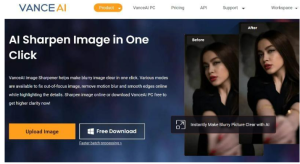

Step 2: Inside VanceAI Enhancer Workspace, you can switch between VanceAI tools instantly and use tool related features. Upload an image, use the features, and click on Start to Process to sharpen image details.
Step 3: You will get the sharpened image after a few seconds of processing. Once ready, click on Download Image to save the photo.
Sharpen Image Offline with VanceAI PC
Step 1: Use the link for VanceAI PC to go to the online page of the software. From there, you can click on Free Download to start the download of the setup file. The Buy Now option is for purchasing subscriptions.
Step 2: Use the setup file in your device to install the software. Be sure to follow the instructions closely. After that, run the software and click on the Sharpen option to use the image sharpener.
Step 3: Upload the image and use the settings as normal. Click on the Save button to get the final photo.
Performance Examples of VanceAI Image Sharpener
1. General Blur
There are actually multiple types of image blurs and each one of them makes an image look slightly different. VanceAI Image Sharpener offers a feature wherein users can select the type of blur that they want to reduce from their image. The General type of blur refers to the common blurs we see in images. They can make an image look distorted and low quality. You may also come across images that are not quite as sharp as you want them to be. In such cases, you can easily use the General option or the Image Sharpener tool itself to sharpen image online or offline.
When you click on the General option, the tool will automatically set the level of sharpening but you can increase or decrease it as per your preferences.
2. Lens Blur
Photos with lens blur usually include a focus object that appears clear enough while the background looks blurry. The intensity of the blur depends on the specific photo. With VanceAI Image Sharpener, you can sharpen blurry image online or offline to a great extent. The tool usually doesn’t remove blur completely but rather focuses on balancing contrast so that the photo looks better than before.
3. Motion Blur
If an object or camera moves while the photograph is being taken, it can cause motion blur. This effect makes the image appear less sharp, giving it a stretched or smudged appearance that can obscure important details and features. However, the Image Sharpener tool includes a motion blur feature that can help alleviate this issue. By manipulating the image’s color and intensity, this feature can enhance the focus and minimize the blurriness. By doing so, it helps to create a more clear and defined picture.
4. Soft Blur
Soft blur is a type of image blurring that occurs when a picture seems to be slightly unfocused or lacks clarity. This can be caused by a number of reasons, such as low lighting, camera shake, or low resolution. However, with VanceAI Image Sharpener, one can address this issue by tweaking the image’s sharpness. This tool works by identifying the edges and outlines of the objects in the picture and enhancing them. Meanwhile, it also minimizes the presence of any noise or other distortions that may affect the image’s overall appearance.
Final Verdict
VanceAI Image Sharpener is an exceptional tool that you can utilize to refine your images, whether you’re online or offline. What sets this tool apart is its utilization of cutting-edge AI algorithms and modern technology, which ensures efficient and high-quality results. What’s more, it conducts targeted procedures for specific types of blurs, allowing for superior accuracy and performance. Compared to other image sharpening applications, VanceAI Image Sharpener simplifies the process of enhancing blurry images online, making it the go-to tool for many.
Furthermore, VanceAI is expanding its horizons by introducing new modes, including VanceAI PC and VanceAI JA. The VanceAI JA platform is geared towards providing services in the Japanese language, making it more accessible for Japanese-speaking users. This move demonstrates VanceAI’s commitment to making its services available to a wider audience and catering to the needs of different language communities. With VanceAI, users can expect a versatile and innovative approach to image enhancement.
Additional Choices from VanceAI
As a comprehensive image editing platform, VanceAI offers a plethora of tools that users can utilize to enhance their images. These tools can be combined to further refine and improve the images. One such feature is the Workflow, which contains preset algorithms that combine various tools for seamless image editing. For instance, the AI Super HD algorithm merges VanceAI Image Denoiser and Upscaler to produce high-definition images. Similarly, users can use VanceAI Image Enhancer and Sharpener to sharpen and enhance the quality of their images.
Another noteworthy tool offered by VanceAI is VanceAI Image Denoiser, which is incredibly effective in reducing and eliminating image noise or film grain. This tool takes only a few seconds to give an image a fresh, brand-new look.
Moreover, VanceAI has introduced VancePDF.com, an online PDF processing application that offers a variety of useful features related to PDF files. This includes merging, splitting, and other related features that make PDF management more convenient and efficient. With VanceAI, users can expect a diverse range of tools to cater to their image and document processing needs.


