

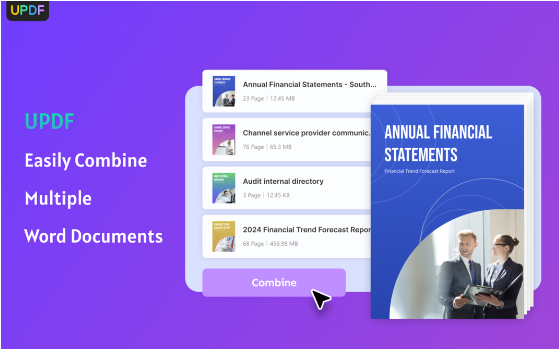

There are many reasons why you would want to merge Word documents from time to time. Maybe you wish to do this to easily share one file over a batch or just want all your essential and related documents in one Word file. And that is what we are going to discuss in this blog. Read on to learn how you can combine Word documents easily.
Part 1. How to Merge or Combine Multiple Word Documents? Best Methods
There are many methods you can use to merge Word documents, but here we will discuss the top three and most accessible ways. So, without wasting time, let’s get into it.
Method 1: Combine Word Documents with UPDF for Free:
UPDF is a PDF editor that lets you easily merge and split your documents. You can use UPDF on Windows as well as Mac. For now, we will talk about its coming Word documents feature only.
Here is how you can merge Word documents using UPDF.
How to Merge Word Documents With UPDF
Step 1: For Mac users, save your Word documents in PDF format; for Windows users, drag and drop Word documents to UPDF and then save them in PDF one by one.
Step 2: Get back to UPDF’s main page; you will see the “Batch” button on the left side. Click on it and select the ‘Combine’ option from the list of choices.
Step 3: Now, you can drag and drop multiple files you want to merge together or upload them by clicking on the “Add Files” button. By doing this, all files will be immediately added to the open UPDF area.
Step 4: once all the files are uploaded, you can rearrange or delete any file you don’t want in the final combined PDF here.
Step 5: Once all the files have been added and rearranged, click the “Apply” button on the bottom right side to save the new combined document.
Note: You can only merge two files simultaneously with the free version of UPDF; if you have UPDF premium, you can merge as many files as you’d like in one session.
Pros Of Using UPDF For Combining Word Files
- UPDF maintains the formatting of the original Word documents.
- With UPDF, you may re-order, replace, delete, split, and extract pages from the file after combining.
- With UPDF, you may choose how much to compress or shrink the file size.
- You have the option to upload to UCloud for easy editing and access.
- Digital signatures and encryption are among the security measures offered by UPDF.
2. Merge Word Documents with MS 365’s Object Feature
MS 365 is a subscription-based software that lets users be more productive and get professional work done more conveniently and efficiently. With MS 365, you can access Word, Excel, PowerPoint, Outlook, OneDrive, Microsoft Teams, and many more software. Here is how you can merge Word documents with MS 365:
How to Merge Word Documents In MS Word
- Launch Microsoft Word from your device or the internet.
- Choose a blank page and open it.
- Click the insert symbol from the top bar menu once the new or blank page opens.
- Selecting the “insert” symbol will cause several Microsoft Word capabilities to show up. The word “Object” will appear as an icon on the right. Choose “Text from File” from the drop-down menu by clicking here.
- You will be prompted by Microsoft Word to submit the files you want to merge. Select the files that you wish to add to the current document. You can choose many documents by just holding down the Ctrl key.
- That is all. One document will be created by combining all of the files.
Pros and Cons Of Using MS Word
Pros:
- Numerous platforms, including Windows, macOS, iOS, Android, and a web version, are supported by the application.
- Because of its extensive feature set, it can be used for creating documents professionally.
- Users can save and open files in different formats.
- It keeps your files secure with a password.
Cons:
- It is expensive in comparison to certain free and inexpensive alternatives that let you merge your files for less cost.
- Some customers find the UI complex, which makes it challenging to find some features.
- Occasionally, formatting problems may arise, particularly when handling big files.
3. Combine Word Documents with Online Word Mergers:
Today, many online tools are available that let you combine Word documents. One such tool is Groupdoc. Here, we will show you steps to merge Word files using this tool.
Step By Step Guide to Merge Word Documents Online
- Launch the Merge software online.
- After selecting the files you wish to upload, click the “browse file” button.
- After the files have been submitted, click “Combine”.
- Download the combined document at the end.
Pros and Cons Of Using Online Merge Document Tools
Pros:
- The use of online tools is simple.
- The majority of them offer free file fusion for tiny files.
- It is not necessary to download such software to use it.
- They are reasonably priced.
Cons:
- With free online tools, you get a lot of annoying ads every time.
- The privacy and security of confidential files could be at stake with some online free softwares.
- The tool often hangs when processing more than 3 or 4 files or processing large files.
Part 2. Bonus: UPDF Works More Than a Word Document Combiner
So, we have mentioned three tools for you to merge Word files. But UPDF stands out as the ultimate solution for merging Word files, being a user-friendly and affordable solution out there. You might be wondering what more UPDF can do for you. Well, here are more features of UPDF that make it outshine the alternatives:
UPDF Features
- You can batch merge several files into a single document using UPDF, i.e., images, GIFs, PDFs, and more can be added.
- Using UPDF, PDF files can be rotated, deleted, and have their pages removed.
- You can also split your documents using UPDF.
- Its UPDF AI feature also lets you rewrite, summarize, chat with your combined PDF, or brainstorm new ideas.
- Its PDF editing feature lets you edit your file text, images, background, fonts, formatting, and much more.
- You can also add comments to your file using UPDF. It also allows you to create text boxes, take notes, underline important passages, and a lot more using UPDF.
- PDFs can be converted to different file types, and the conversion process includes the OCR capability.
- With UPDF, you get reading modes “Single Page Scrolling,” “Single Page View,” “Two Page Scrolling,” and “Two Page Scrolling.”
- It also lets you add bookmarks to your file.
Part 3. FAQs About Merging Word Documents
Q1. Can I split a Word into several documents after combing?
Yes, you can split Word documents after combining them using UPDF. Here is how.
- Open the file you want to split using UPDF.
- Now, choose the “Organize page” icon from the left bar menu. After that, a new menu bar will appear on top of the file. Here, select the “Split” icon.
- When you click the “Split” icon, a new pop-up window requesting that you choose how many pages you want in each split will show up. The number of pages you select for each file determines how UPDF automatically divides the entire file.
- Choose the number of pages you want per split and click the split button. UPDF will ask you next to select the folder where you want to save the file. Once you have selected the area, click the “Select folder” button, and your new split files will be saved.
Q2. How do I import formatting from one Word document to another?
Here is how to import formatting from one Word document to another:
- Open the document that has the required style in it.
- Go to the “Developer” tab, choose “Document Template,” and then click “Organizer” at the bottom of the dialog box.
- Click close file, then click file open, then choose the new document. On your left, you will see the styles from the current document, and on your right, the styles from the template.
- Once you have chosen the desired style, click the copy button, shut, and you are done.
Q3. How do I copy and paste with new formatting?
The easiest method to copy and paste text with new formatting is using the Cttrl+Shift+V key altogether. This way, your new add texts will have the same format as the existing format of the entire file.
Conclusion
In this article, we learned the best and easiest methods to merge Word document files. We hope you know how to merge files with simple and easy steps. However, all of the above methods work perfectly. We recommend using UPDF.
Beyond just combining Word documents, UPDF lets you edit, split, convert, and do a lot more with PDFs. UPDF stands out from the competition because of these and many other features, making it a great option for both personal and business use.
